Commit Details
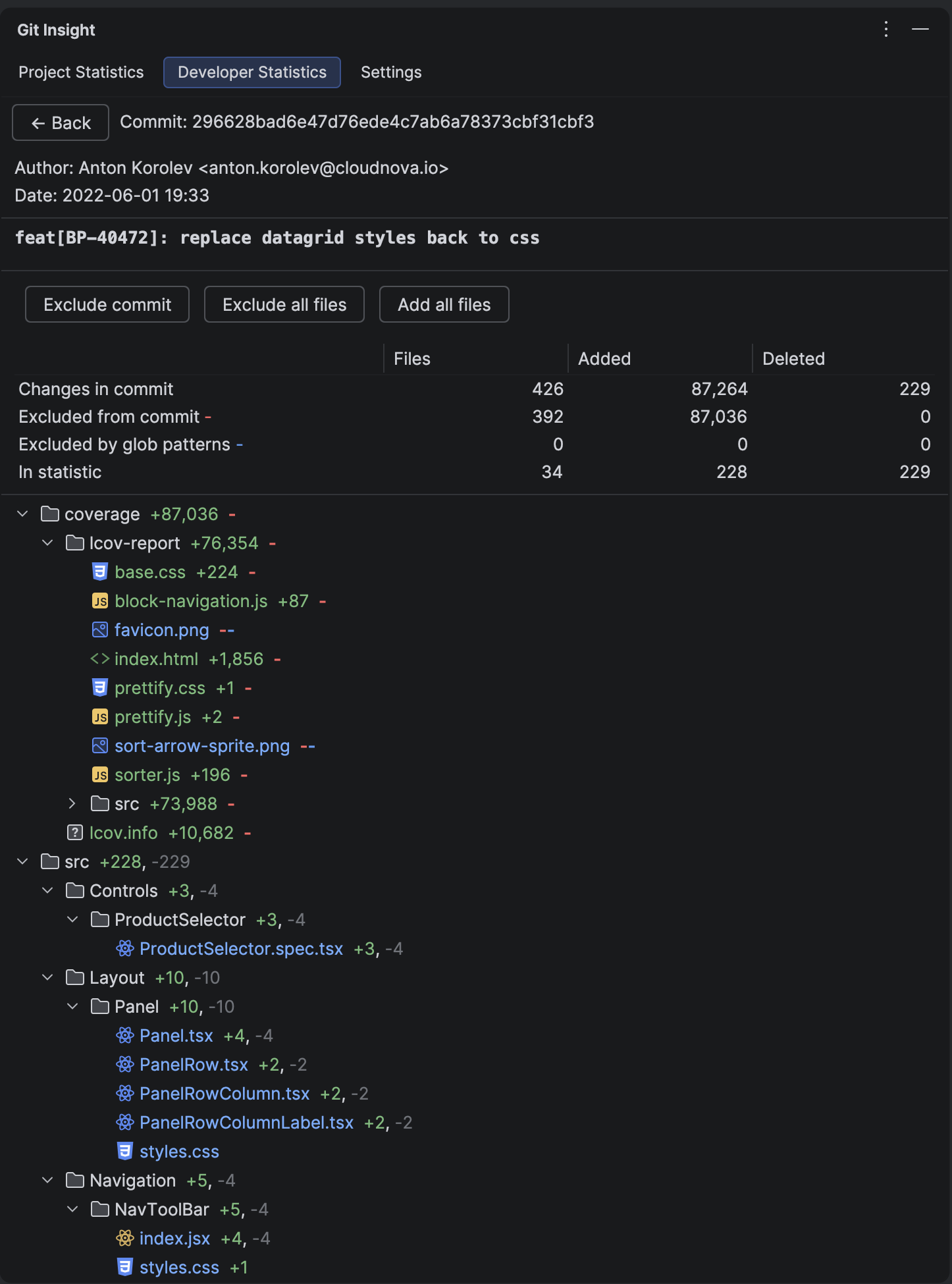
Inspect a single commit in full detail — see the complete message, all changed files, and open diffs directly in your IDE.
Key Features
- Full commit metadata (hash, author, date)
- Complete commit message with subject and body
- Tree of changed files grouped by directory
- Lines added/deleted per file with color indicators
- Double-click to open diff viewer
- Exclude individual files or entire commit from statistics
Commit Information
Header Section
- Commit hash — full hash, click to copy
- Author — developer name who made the commit
- Date — commit date and time in your local format
Message Section
Shows the commit subject (first line) in bold, followed by the full body. Long messages have a "See more" link to expand.
File Tree
Changed files are organized in their directory structure. Each file shows:
- Status icon — Added (green), Modified (blue), Deleted (red), Renamed (gray)
- File name — with full path in tree structure
- Lines added — green number
- Lines deleted — red number
How to Use
View Diffs
Double-click any file to open the IDE's diff viewer. You can also right-click for options:
- View inline diff — unified view
- View side-by-side diff — split view
- Open file in editor — jump to current version
Manage Exclusions
Use the buttons at the top to manage what's included in statistics:
- Exclude commit / Add commit — toggle entire commit exclusion
- Exclude all files / Add all files — bulk manage file exclusions
You can also right-click individual files or folders for granular control:
- Exclude this file/folder
- Exclude all files in this folder
- Add this file/folder back
Visual Indicators
Excluded files show a red "-" indicator. Hover to see a tooltip explaining the exclusion status. The statistics summary at the bottom shows included vs. excluded file counts.
Tip
Use file exclusions when a commit contains both meaningful changes and generated files. For example, a feature commit that also updates lock files — exclude just the lock files while keeping the rest.