Developer Changes
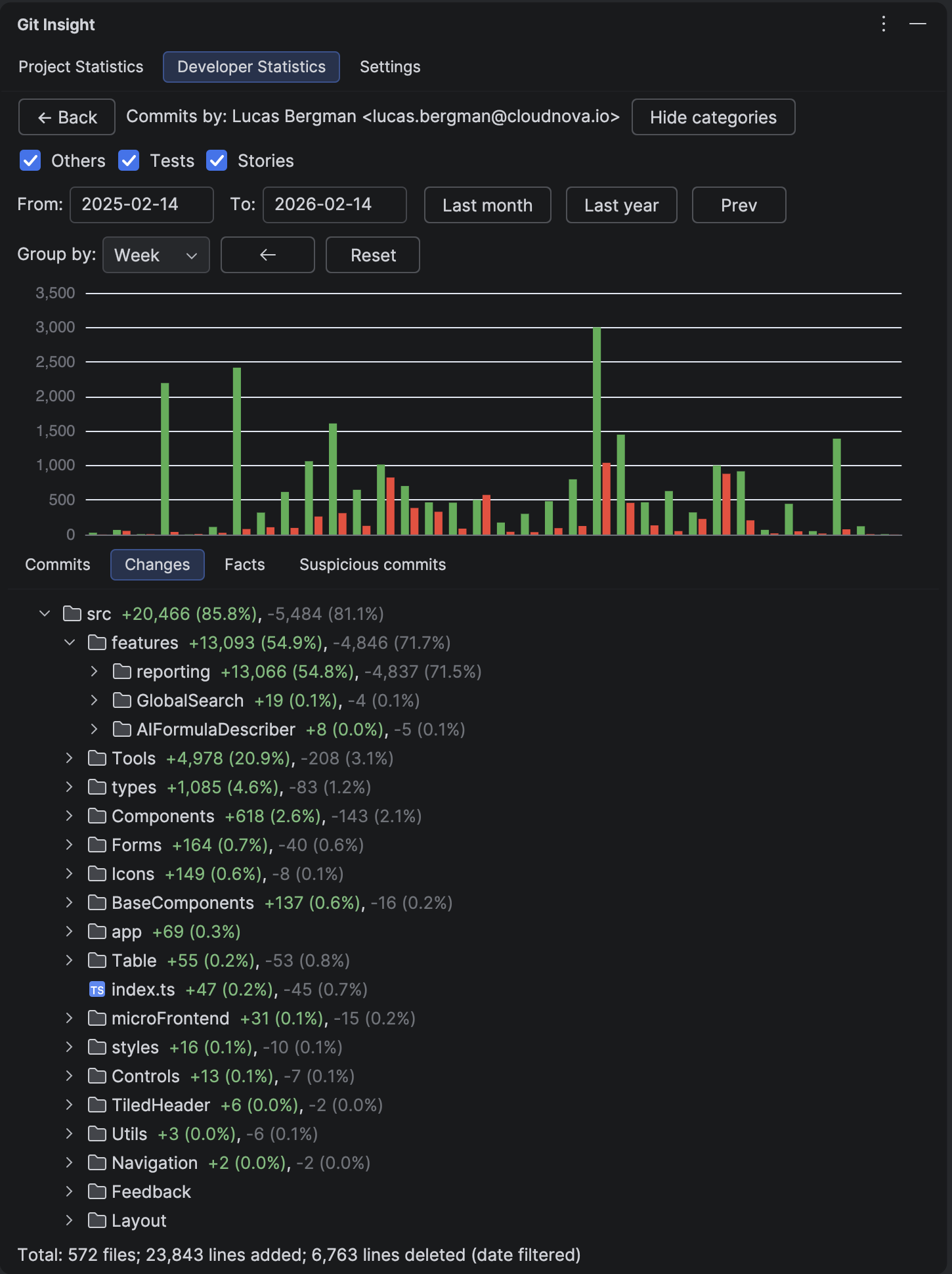
Understand where in the codebase a developer focuses their work. This tree view aggregates all file changes across commits, showing total lines added and deleted per file and folder.
Key Features
- Hierarchical folder/file tree matching project structure
- Aggregated lines added (green) and deleted (red) per item
- Percentage of total changes shown for each file
- Tooltip reveals individual contributor breakdown
- Double-click to open file in editor
Understanding the View
Tree Structure
Files are organized in their actual directory structure. Folders show cumulative totals for all files within them. The tree is sorted by lines added (descending) so the most-changed areas appear at the top.
Statistics per Item
- Green number — lines added
- Red number — lines deleted
- Percentage — this item's share of total changes
Contributor Tooltip
Hover over any file or folder to see which developers contributed to it. The tooltip shows the top 10 contributors with their individual line counts.
How to Use
Navigate the Tree
Expand folders to drill down into specific areas. This helps identify a developer's areas of expertise or responsibility.
Open Files
Double-click any file to open it in the editor. This works for files that still exist in the current project state.
Identify Patterns
Look for developers who consistently work in certain areas:
- Core infrastructure vs. UI components
- Tests vs. production code
- Configuration files vs. business logic
Tip
The Changes tab is essential for fair performance reviews — it shows what parts of the codebase each developer worked on. Learn the full workflow
Tip
Changes to build configuration, CI/CD pipelines, or core infrastructure often require significant expertise even with few lines changed. Use this view to recognize impactful work that simple line counts might undervalue.