Developer Teams
Group developers into teams (frontend, backend, DevOps, etc.) and filter every Developer Statistics view by team membership. Compare team velocities, spot workload imbalances, and prepare reports by department.
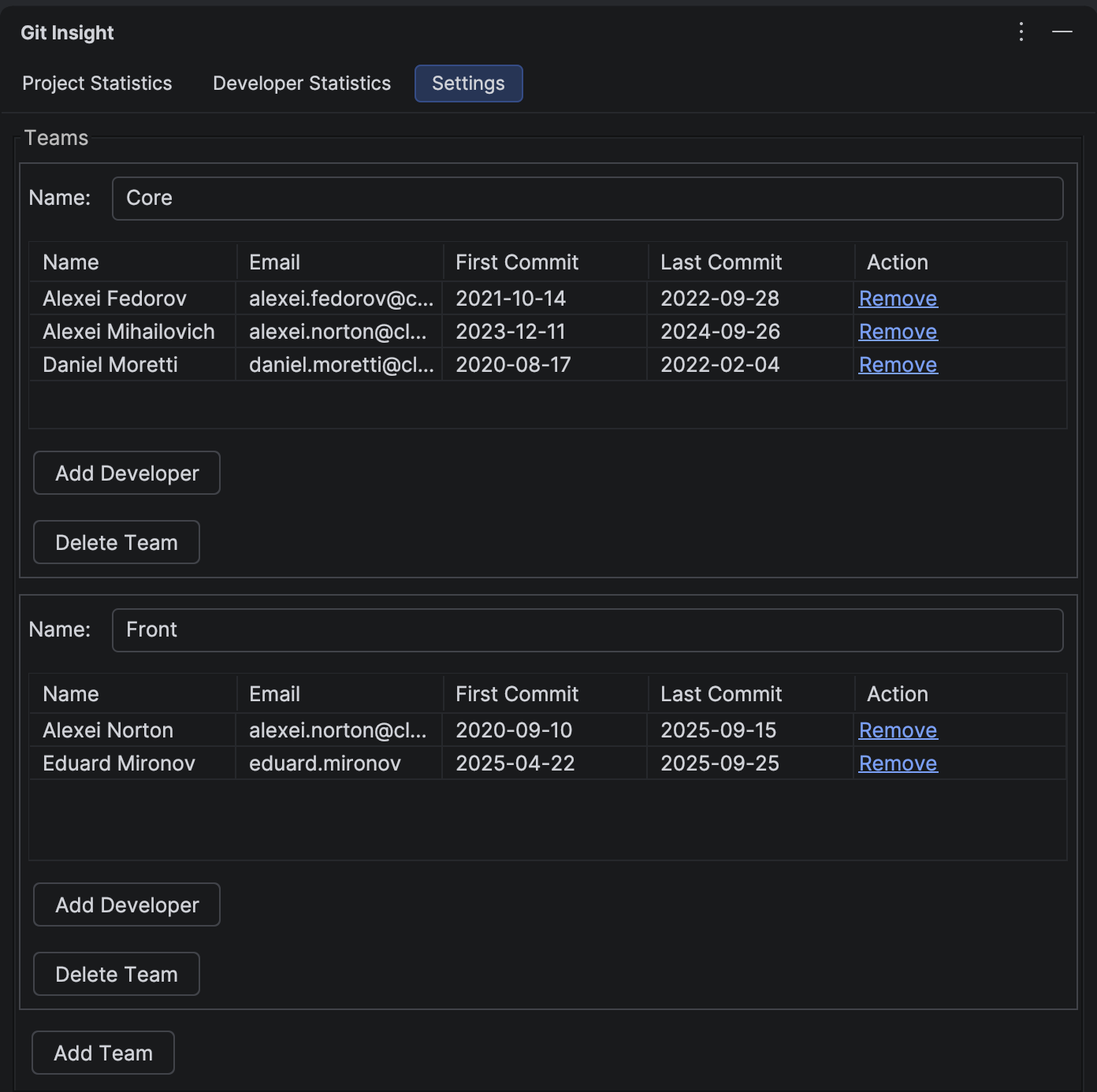
Key Features
- Create any number of teams, each with its own display name
- Add developers to teams by selecting their git identity (name + email)
- A developer can belong to multiple teams simultaneously
- Team filter popup in the Developer Statistics toolbar with checkboxes and an "Others" bucket
- Filter applies across all sub-tabs: Developers, Commits, Changes, Facts, Suspicious
- Configuration persisted in
.idea/gitInsight.xml— shareable via version control
Creating a Team
- Open the Settings tab of Git Insight
- Find the Teams section and click Add Team
- Enter a team name (e.g. "Frontend", "Platform", "DevOps")
- Click Add Member and select developer identities from the list — the list is populated from your project's git history
- Save — the team filter button appears in the Developer Statistics toolbar
Filtering by Team
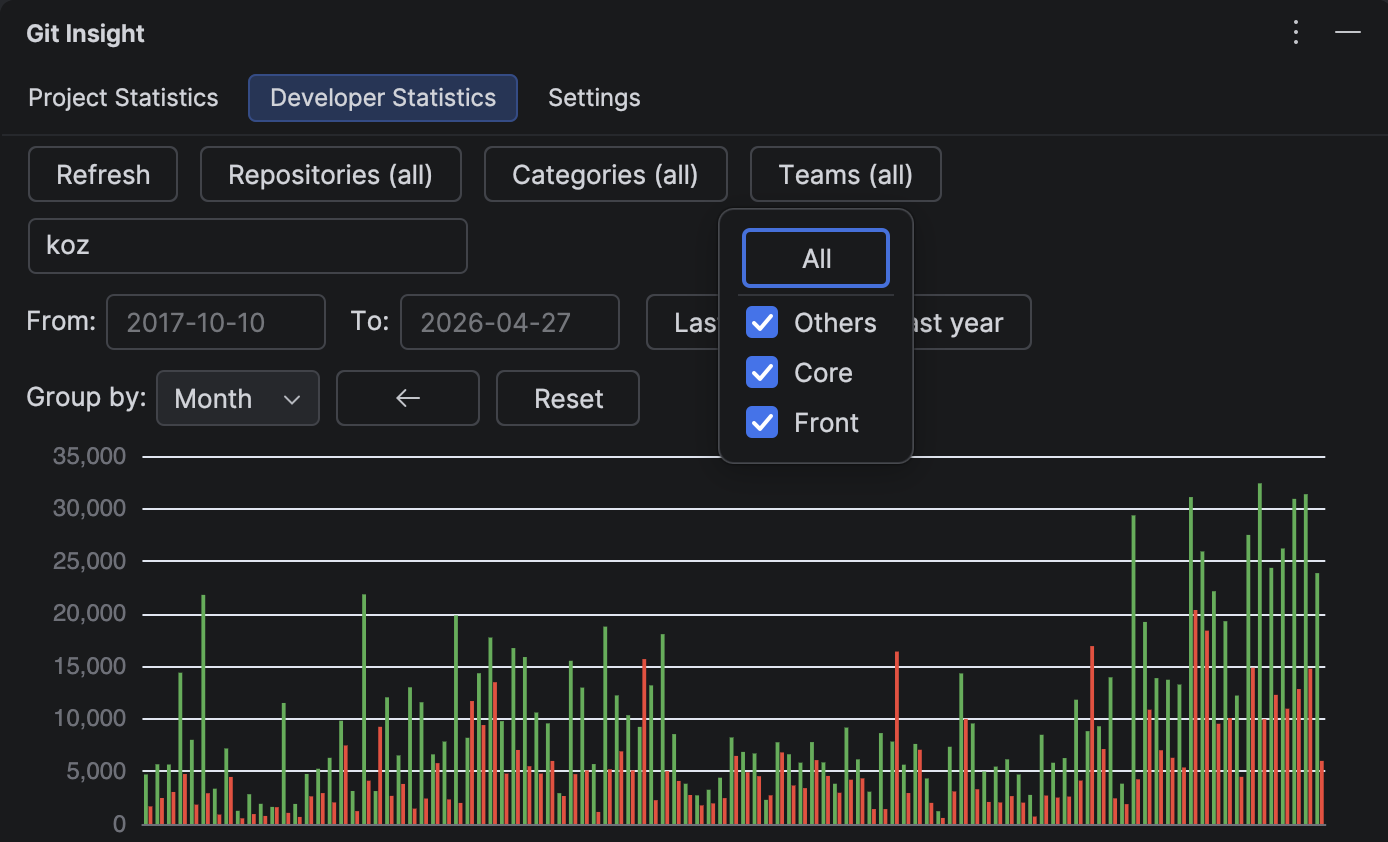
The Teams button in the toolbar opens a popup with a checkbox per team plus an Others bucket for developers not in any team. Selection applies immediately to:
- Developers table — only shows developers in the selected teams
- Commits — lists only commits authored by selected teams
- Changes — aggregated file-change tree reflects only selected teams
- Facts — velocity metrics (Lines changed per workday, averages) recomputed for selected teams
- Suspicious — suspicious commits filtered by authorship
Important: team membership uses raw git identities
Members are matched by the raw name + email pair from each commit, not by the display identity produced by Merge Developers. If a developer commits from two accounts (e.g. work laptop and personal laptop) and you've merged them, you still need to add both raw identities to the team for complete filtering.
Sharing Team Configuration
Team configurations are stored in .idea/gitInsight.xml under teamConfigs. Commit this file to your repository so everyone on the team — and anyone who opens the project in a new IDE — automatically gets the same team groupings.
For multi-repository setups, team configuration synchronizes bidirectionally between IDE projects that include the same repo (see Multi-Repository Support).
Typical Workflows
Comparing team velocity
Open Developer Statistics, set the date range, select a single team, and note the metrics on the Facts tab (Lines changed per workday, Average per developer per workday). Switch to another team and compare. For fair comparisons, use Average for top 90% developer per workday — it excludes one-off contributors.
Workload balancing
Compare total lines changed per team over a quarter. Consistent imbalances may indicate understaffed teams or scope creep.
Department reporting
Prepare reports for leadership by team rather than by individual — safer politically and more meaningful for planning decisions.